How to Prevent 3D Prints from Failing Mid-Print (Power, Filament & More)
If your 3D prints are failing halfway through - stopping mid-job, pausing indefinitely, or just quitting entirely - you're not alone. Few issues are more frustrating than walking back to your printer only to find it stopped 8 hours into a 10-hour job. And worse, the reason isn’t always obvious.
This guide walks through the most common causes of mid-print failures and how to troubleshoot each one. Whether you're printing at home or managing printers in a classroom or small business, these tips can help you recover and prevent failures before they happen.
Pro tip: We’ll also explain why investing in an uninterruptible power supply (UPS) can save you hours of time and wasted filament - especially during long prints.
1. Loose or Intermittent Power Connections
Loose plugs, sketchy extension cords, or momentary outages can all interrupt a print.
What to check:
- Make sure your printer's power cable is securely connected to both the printer and wall outlet.
- Avoid cheap extension cords or outlet splitters. A slight jiggle can interrupt power and kill a print instantly.
- Inspect the power supply brick or internal PSU if your printer has one - overheating or wear can cause power flickers.
2. Filament Jams or Runouts
If your printer suddenly stops extruding mid-print, filament feed issues may be to blame.
What to check:
- Is the spool tangled? One of the most overlooked causes of filament jams is poor winding. Make sure the filament isn’t looped under itself or stuck.
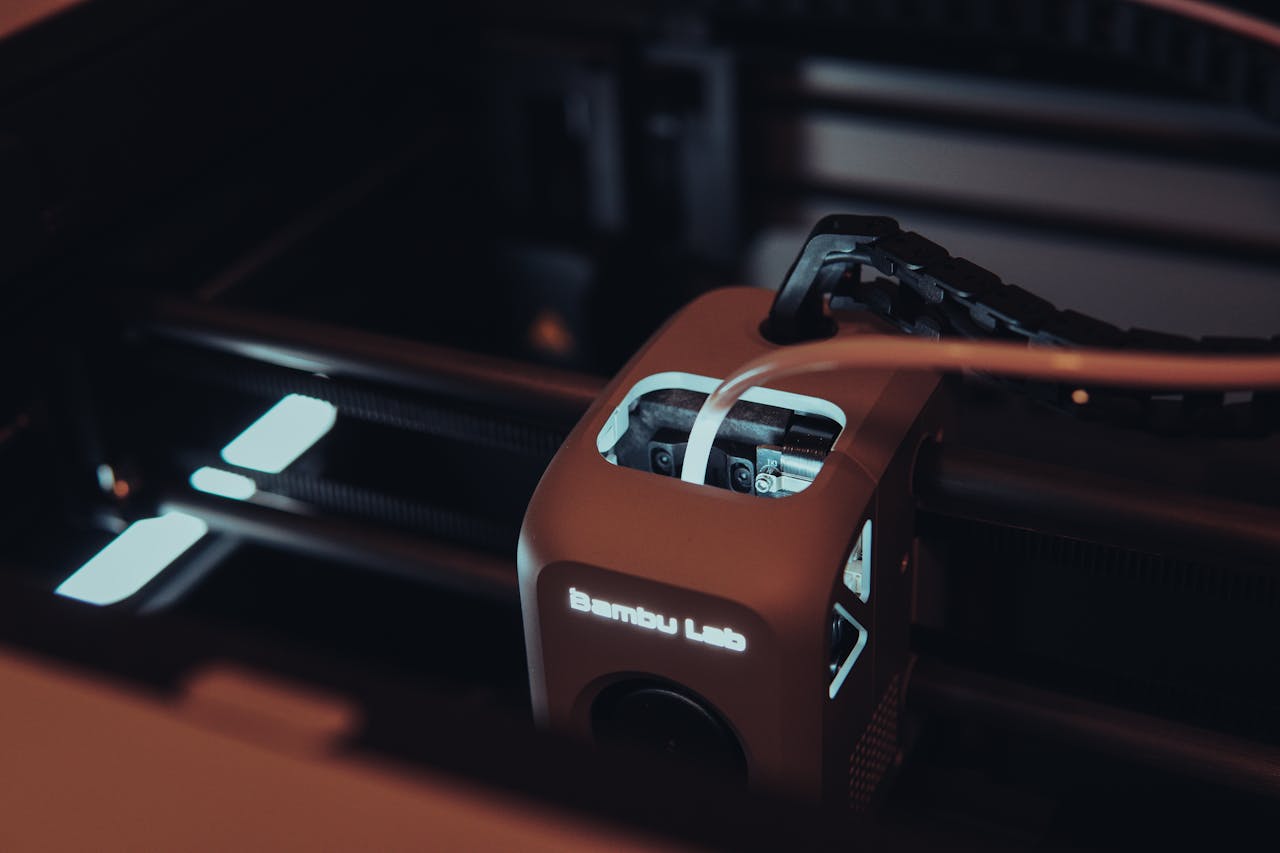
- Real-life example: A client in North Jersey runs a print farm using Bambu Lab printers. Wanting the best, they used Bambu’s OEM filament with reusable spools. Unfortunately, these often led to print failures due to increased resistance and jamming mid-print.
- Check the extruder for grinding marks or filament dust - this can indicate a clog or slippage.
- Make sure filament runout sensors are working, or disable them temporarily for testing.
- Recommended filament: eSun PLA+ offers excellent reliability, low clogging, and clean winding.
3. Overheating Stepper Drivers or Nozzle
Some printers pause or halt if internal components get too hot - even without a visible error.
What to check:
- Use your printer’s terminal or mainboard stats (if available) to check stepper driver temps.
- Keep your printer in a cool, ventilated area.
- Check for obstructions around part cooling or hotend fans.
4. SD Card or USB Failures
If you’re printing from removable media, corruption or read errors can cause silent crashes.
What to check:
- Reformat your SD card or USB drive (FAT32 recommended).
- Avoid cards larger than 32GB on older printers.
- Use the manufacturer’s slicer or preview tool before running the job.
5. Firmware Bugs or G-code Errors
A bad line of G-code can freeze a printer, especially on custom firmware or older boards.
What to check:
- Update your firmware.
- Run a dry print (no filament) to isolate where failure happens.
- Try slicing with a different tool: Cura, Bambu Studio, or PrusaSlicer.
6. Brief Power Loss or Surges
A one-second blip is enough to kill a print if your printer doesn’t support resume-after-outage.
Prevention tip:
Use a UPS (uninterruptible power supply) so your printer can ride out short outages and voltage dips.
Recommended UPS:
APC Back-UPS Battery Backup & Surge Protector with USB Charging (Model: BE600M1)
https://www.amazon.com/APC-Battery-Protector-Back-UPS-BE600M1/dp/B01FWAZEIU
7. Printer Resets or Thermal Runaway Errors
If your printer reboots mid-job or flashes a thermal error, it may be protecting itself.
What to check:
- Inspect thermistor and hotend wiring - loose connections can cause ghost temperature drops.
- If you see a "thermal runaway" warning, stop printing immediately and inspect the hotend mount, fan, and heater cartridge.
Final Thoughts
Mid-print failures are one of the most frustrating parts of 3D printing, but they’re also preventable. By checking your power connections, upgrading your filament, watching for temperature issues, and using a UPS, you can drastically reduce how often prints fail partway through.
If you’re stuck and need help troubleshooting, reach out. Whether you're a school IT admin managing a fleet or a hobbyist trying to fix one stubborn printer, we offer pickup, diagnostics, and fast, honest repairs.
Need help with a failed print or power issue?
Visit our service page:
https://www.3dprintingbybokey.com/services
Check if you're in our service area:
https://www.3dprintingbybokey.com/service-area
FAQ: Preventing Mid-Print Failures
What causes a 3D print to stop halfway?
Power flickers, filament runout, clogged hotends, or firmware glitches are the most common reasons prints fail mid-way.
How do I stop my 3D printer from pausing mid-print?
Use a UPS to protect against power issues, enable runout detection, and check for overheating or SD card errors.
Can I resume a print after power loss?
Some printers have resume features, but they aren’t 100% reliable. A UPS is the best way to prevent the need to resume at all.
Should I replace my hotend if prints keep stopping?
If you’re seeing repeated clogs or extrusion stops, inspect the nozzle and heatbreak. You might need a cleaning or replacement.
What kind of battery backup works for 3D printers?
Look for a basic UPS with at least 300–600W output. We recommend the APC BE600M1 for most hobby and school printers.